FAQs: Business users
What are the differences between locations, geolocations, and sites in Genesys Cloud?
Genesys Cloud includes three independent concepts that people often call locations:
A location is a specific, physical place with an address. An admin configures locations. Locations appear in the Location section of your profile.
A geolocation is a geographic area that Genesys Cloud determines by IP address. An admin can enable or disable geolocation for an organization. Your geolocation appears near your name and photo on your profile page, on your contact card, at the top of a chat window, and in Genesys Cloud search results for your organization.
- A site is a container for phone and BYOC Premises Edge configuration information and must have a designated location. While a site can have the same name as a location, the two are independent concepts. A telephony admin configures sites.
Why do multiple concurrent Genesys Cloud logins cause problems?
Genesys Cloud does not support multiple concurrent logins to the same account. Genesys Cloud considers the following scenarios as multiple concurrent logins:
- The same account logs in to web app on multiple tabs or browsers.
- The same account logs in to the desktop app and in the web app.
- The same account logs in on different computers at the same time.
- The same account logs in to an embedded client and the desktop, web, or mobile apps at the same time.Note: If configured correctly, agents can use the Genesys Cloud desktop or browser client as the primary client while still using the embedded client concurrently. For more information, see Disable WebRTC audio and alerting notifications.
Multiple concurrent logins can cause these and other problems:
- Unsuccessful phone interactions
- Missed notifications
- Unrefreshed views
- Unreliably updated statistics in dashboards
- Other inconsistent behavior
Issues arise partly because each client has a limited number of notification channels for these events. More than one concurrent login can cause a notification channel to close. For more information about notification channels, see Use the notification service in the Developer Center.
Because you may not see these issues, Genesys Cloud notifies you if you lose your connection. If you see this notification, close any other instances of Genesys Cloud and refresh the app.
- You can log in to either the desktop or web app.
- In addition to either the desktop or web app, you can log in to the mobile apps at the same time. However, this support excludes concurrent logins between the embedded client and the mobile Communicate app, unless you disable webRTC in the embedded client.
- With persistent connection is enabled for your WebRTC phone, if you log in to either the desktop or web app and a mobile app, and place or answer a call with either the web or desktop app, the WebRTC connection remains open. Genesys Cloud routes any future calls directly through the open WebRTC connection instead of to devices; in other words, the mobile app does not receive notifications of the incoming call. For more information, see Use the persistent connection feature with a Genesys Cloud WebRTC phone.
Can I remove my email address from my profile?
You can change your email address, and you can add email addresses, but your profile must always have a primary email address.
Why don’t my credentials work when I log back in to Genesys Cloud?
If you have difficulty logging in to Genesys Cloud, you may see this message:
There was problem logging you in. Please check your email address and password and try again.
After six unsuccessful consecutive login attempts, Genesys Cloud temporarily locks your account. You can try to log in again after five minutes.
Reasons for unsuccessful logins:
- You typed your email address and/or password incorrectly.
- If your administrator set a password expiration policy, your password may have expired.
Solutions:
- Reset your password. See Set your password in Log in for the first time.
- Contact your administrator to reset your credentials.
Why do I need to re-enter my Genesys Cloud credentials?
Genesys Cloud features benefit from the use of various tokens with varying lifespans. When you access any Genesys Cloud feature with an expired token, you must re-authenticate.
Users in HIPAA organizations are logged out of Genesys Cloud when their browsing session expires. Users are directed to the Genesys Cloud login page and must re-enter their credentials. If users are on a call when the browsing session expires, the call is not interrupted. When the call completes, users are directed to the Genesys Cloud login page and must re-enter their credentials.
Users in non-HIPAA organizations are automatically re-authenticated when their browsing session expires. The re-authentication process causes Genesys Cloud to reload. Users are returned to the page they were on when the browsing session expired. If users are on a call when the browsing session expires, the call is not interrupted. Users can choose to re-authenticate automatically after the call ends.
Why do my calls get sent to voicemail when I am in certain statuses?
If your telephony administrator configures a particular presence to go directly to voicemail, Genesys Cloud can send your non-ACD calls to voicemail based on your current presence. For more information, see Define which presence statuses send a Communicate call to voicemail.
For more information about statuses and their effects, see Presence, status and activity indicators or Agent presence, status, and activity indicators.
Can I make and receive calls when I am logged off of Genesys Cloud?
If you have a physical phone set as your default phone, then you can make and receive calls on that phone even if you are logged off of Genesys Cloud. Ask your administrator if you are unsure which phone is your default phone. If you are an administrator and want more information about how to assign a default phone to a user, see Assign a default phone.
If you do not have a physical phone set as your default phone and are logged off of Genesys Cloud, then you can still receive calls to your phone number in Genesys Cloud. Before you log off, enable call forwarding. Genesys Cloud forwards any calls made to your Genesys Cloud number to the number of your choice.
What does it mean if the group chat room is full?
A chat room can have a maximum of 1000 participants. If a group chat room has 1000 participants, then Genesys Cloud considers it full, and you can only browse the group chat’s history. You cannot join the chat, post messages, or search chat history until other users leave the chat room.
Why can’t I see Documents?
In order to see Documents, you must have the Employee role or any role with the Content Management User permission. Contact your administrator for assistance.
Why can’t I see the group workspace I need?
In order to see a , you must be added as a member of it. If you don’t see the group workspace you want, ask your admin to add you as a member to that group workspace.
Where can I find details about faxes I have sent?
To see details about a fax, such as the number you sent the fax to and when the fax was sent, go to the fax’s file in Documents.
Where can I find sent or received faxes?
Genesys Cloud Documents stores any faxes you send or receive as files in your workspace. Search for the file to find your fax. You can also view received faxes in your inbox.
How do I unshare a document?
You can unshare a document from your . For more information on unsharing a document, see Unshare a file, in Share a file.
How can I check for the newest version of the desktop app?
The Genesys Cloud desktop app notifies you when a new version is available to download. However, you can check to see if any new updates are available in the desktop app menu. To check for updates, on the menu bar, click Genesys Cloud and then Check For Updates…
You can also check the Windows desktop app release notes and Mac desktop release notes for the newest version and the improvements and fixes included in that version.
How do I change or reset my password?
If you know your current password but want to change it, use the Preferences menu. For more information about changing your password, see Change your password.
If you forgot your Genesys Cloud password and cannot log on to Genesys Cloud, reset your password from the login screen. For more information about resetting your password, see Reset your password.
Where can I download the Genesys Cloud apps?
You can download and learn more about the Genesys Cloud desktop app in the Desktop app article. You can also access Genesys Cloud by going to the web app from a web browser. For more information about the web app, see the Web app article.
You can download the Genesys Cloud apps for iOS and Android devices from the Mobile apps article. Genesys Cloud has two apps for mobile devices: Collaborate and Documents. Search for and communicate with other users in the Collaborate app, and Access files stored in Genesys Cloud with the Documents app.
Why do I still get mobile app notifications after I close Genesys Cloud?
Genesys Cloud mobile apps continue to push notifications unless you log out of Genesys Cloud. Closing the app does not automatically log you out.
How do I find a file in my Documents repository?
Your Documents repository is designed to hold a lot of files. The more you use it, the bigger it becomes. To help you find your files, Documents provides several sophisticated tools.
- Start by searching for a file by its name or type. Then use the faceted search to narrow your search based on specific criteria. For more information, see Search for a file
- You can also search based on the tags you assigned to the file.
What are workspaces?
Workspaces are places where you store your documents, or files. You have one personal workspace, called . You may also belong to multiple . For more information, see What is My workspace? and About document administration.
Can I have multiple versions of a file?
In Documents, you can replace an existing file with a new version of it. For more information, see About file versions.
Who can I share files with?
You can share files with anyone, including Genesys Cloud groups and people who are not Genesys Cloud users. For more information, see Sharing files and Share a file.
How do I add files to a workspace?
You add files to a workspace by uploading them from either your desktop or mobile device.
- You can upload most common file types to your workspace.
- You can upload any number of files, but each file must be no larger than 2GB.
For more information, see Add files to a workspace.
What kinds of files can I store or view in Documents?
You can store nearly every type of file in your Documents repository. For more information, see About supported file types.
Can I use the Call button without Genesys Cloud Communicate?
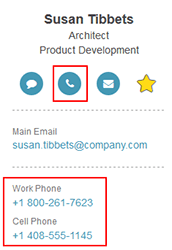
Yes, you can use the Call button without a Genesys Cloud Communicate license (which integrates with your phone system). This button can also launch a phone call application like Skype.
- Click the Call button or a phone number from anywhere in Genesys Cloud.
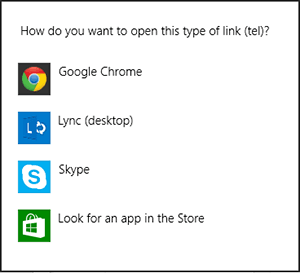
- First time only: Choose an application for handling phone calls. Exact instructions can vary depending on browser type.Note: This sets the default for the browser or the Desktop app. You can also set a default for your computer by associating a default calling application with the Tel Protocol in your operating system settings.
Why doesn’t the Email button work?
You must have a default email application selected on your computer to use the Email button. If you do not know how to select default applications for your operating system, ask your IT department.
How do I select my region?
When you log in to the browser app, desktop app, or mobile app, you are prompted to select the region where your organization was created, for example, Americas (US East), Americas (US East 2), Americas (US West), Americas (Canada), Americas (São Paulo), Asia Pacific (Mumbai), Asia Pacific (Seoul), Asia Pacific (Sydney), Asia Pacific (Tokyo), EMEA (Dublin), EMEA (Frankfurt), or EMEA (London). If you are already logged in, log out and log back in with the region selected.
Whether you are in the office, at home, or traveling, your access to Genesys Cloud is routed to the URL corresponding to the location of the Amazon data center for your region.
If you are unsure of your region, contact your Genesys Cloud administrator. Alternatively, try these work-arounds.
- First time log in: Access the Genesys Cloud login URL for each region. Log in will be successful only with the URL corresponding to your organization’s region.
- Currently logged in: (Web app only) The web app URL corresponds to your organization’s region.
How do I update my location?
Update your location in the Location section of your profile. See Add your location.
How do I add my picture?
From the Edit Mode in your profile, click the camera icon on your profile picture. For more information, see Add a profile picture.
Can I connect third-party chat clients to Genesys Cloud chat?
No. We currently do not support connecting Genesys Cloud chat to third-party client applications such as Trillian, Adium, or Pidgin.
What does the star icon do?
The star icon (Favorites) enables you to choose people and groups in your organization who should appear on your Favorites list. For more information, see Add Favorites.
Can I disable an invite link after I send it out?
Yes. Toggle the Open Admission switch to OFF in the Organization Settings. See Configure invite links.
How do I create a group?
Members of an organization must have permission to create groups. For admins, see Create groups (admins). For non-admins, see Create groups (non-admins).
Who can see my documents?
You are the only person who can see documents in your personal workspace. Even Genesys Cloud Administrators cannot access your personal workspace.
All of the documents in a can be seen by any member of that workspace.
How can I make my files easy to find later?
When you upload files, be sure to add to them. You can also add to files after you upload them. For more information, see About tags and About attributes.
Where is my data stored?
When you upload a document to Genesys Cloud, it is securely stored in our cloud. From a geographic standpoint, data that resides in the cloud allows you to access the document from any computer and mobile device that you use to connect to Genesys Cloud.
What can I upload in Documents?
You can upload any type of file to Genesys Cloud Documents. The maximum file size is 2GB.
For more information, see About supported file types.
How many documents can I upload?
You can upload as many documents as you like, as long as each document does not exceed 2 GB.
What is the difference between a group chat room and a personal chat room?
Both types of chat room appear under Groups in the Chat panel, but they are different in the following ways:
- Group chat rooms appear under Official Groups and include anyone who is a member of a group and any non-members who want to chat with or monitor the room (if the group is public). Only admins or group owners can add or remove members from groups.
- Personal chat rooms appear under Personal Groups and only include people invited by the room creator or by other participants. Anyone can create personal chat rooms, and they are not connected to groups. For more on how to create a personal chat room, see Create a chat room.
How do I join or leave an official group?
Only group owners can add or remove members from an official group. For more information, see Join or leave a group.
How do I add skills and certifications to my profile?
In the Edit Mode, edit a section in your profile. Type the tag in the Add field. Then press Enter or select a tag from the suggestions that display to add the tag.
For more information, see Add tags to your profile.
How do I turn off chat notifications?
To turn off chat notifications for a single group chat room or for all group chat rooms, see Set chat preferences. You still receive notifications for direct messages and mentions when chat notifications are off.
To turn off all desktop notifications, including chat notifications, see Change browser app settings, Change Windows desktop app settings, or Change Mac desktop app settings.
How do I format text in chats?
Genesys Cloud Chat supports simple markdown for formatting text in chats. See Format text in chats for more information.