FAQs: Administrators
Authenticated web chat FAQs
Can I create a web chat without a deployment?
No. You can create web chats only by creating a widget. For more information about setting up a widget deployment, see Create a widget for web chat.
Do I have to use authenticated chat?
No. You can use a web chat without requiring authentication. For more information about setting up a widget deployment, see Create a widget for web chat.
Can I allow both authenticated chat and anonymous chat?
Yes. Create one deployment for authenticated chat and another deployment for anonymous chat. For more information about setting up a deployment, see Create a widget for web chat.
How do I know that authenticated chat requests to Genesys Cloud are only coming from my site?
Your site can request a signature for authenticated chat only if it has a valid OAuth token for your organization. Only you know the credentials for making requests to the Genesys Cloud API on behalf of your organization. As long as you secure your credentials, no one else can make requests to the Genesys Cloud API on your behalf.
What information is sent to Genesys Cloud with a signature request?
You can send as much or as little information as you want. The only required item is the OAuth token.
How do I assign division for existing External Contacts?
You cannot assign division directly to an existing contact. By default, all existing contacts appear as unassigned to a division. This display allows existing contacts to be visible to users who have the appropriate permissions.
To use divisions for external contacts, you must delete existing contacts and recreate them with the preferred division assignment. For more information about how to delete and recreate existing contacts, see Divisions for External Contacts quick start guide.
What are the Genesys Cloud limitations?
Limits define thresholds for specific areas of the Genesys Cloud API. These guardrails help to safeguard Genesys services from abusive and unexpected traffic patterns, encourage efficient use of billable resources, and protect customers from unexpected usage.
Genesys defines limitations in the Developer Center. For more information about limitations and limits that are specific to a feature, see Limits in the Developer Center. For information about Genesys Cloud system requirements, see Genesys Cloud system requirements.
Can I disable Agent Assistance in Collaborate chat?
Yes. To disable Agent Assistance access for a user, remove the permission Chat > Agentassistance > Access from the user’s role.
Why can my data change?
Analytics data is subject to change because Genesys Cloud runs a batch process known as pipeline, which is a nightly job that takes place overnight in all regions. The job reprocesses raw event data and inserts it back into their respective data stores.
The main purpose of the pipeline process is the following:
- Make corrections to any minor real-time processing issues that can occur on the service. Real-time processing load is unpredictable, and if an event is overlooked, Genesys cannot rectify it in real-time. The batch processing that occurs nightly corrects these events.
- Fault tolerance: In the unlikely event where a large-scale issue occurs on Genesys Cloud’s real-time processing stack, the pipeline operates independently to correct data.
- Bug fix corrections: If a bug causes certain details or metric records to store incorrectly, these records can recalculate during the pipeline process.
- Compliance: The process of deleting data that you must remove for compliance reasons, such as GDPR in Europe.
- The rollout of new features, such as new, retroactive metrics.
The pipeline runs overnight and reprocesses data that is a minimum of 48 hours at the time that the job kicks off. However, the job can take longer due to the type of data being processed as well as other factors. If expected changes happen due to an issue in real time, the pipeline may begin processing that change after the conversation is at least three days old.
What should you do if you notice your data change?
- Check the release notes for new features released that may cause new calculations or new data points to add to the platform.
- Check the status page for any recent issues around real-time processing of analytics data.
Outside of any recent issues or releases, it is not expected behavior to see differences caused by pipeline rebuilding data nightly.
If you do notice changes, consider the following:
- What data changes took place?
- Is the change indicative of an improvement or a decline in the data under review?
- If further investigation is required, make sure to provide the following to Genesys Product Support:
- ID information (queue ID, user IDs, conversation ID).
- What data changes took place?
- What was the expected outcome?
- The data where the change took place; for example, the conversation details or user details data.
If you are unfamiliar with how to gather the analytics data, contact Genesys Product Support.
Does my website need the Messenger deployment on every page in order to support co-browse?
Yes, co-browse relies on the Messenger snippet to continue the session when you navigate across pages.
Where can I view the interaction Fax Analytics?
You can find the interaction Fax Analytics in the Interactions view.
Note: Under the Available columns section, you can view the list of available column names and their descriptions. If you cannot find a column in the table, in the search bar, enter the name of the column to view its name and description.
For example, under the Available columns section, in the Interactions section’s search bar, search Fax to view the Fax column and its description.
How can I deactivate voicemail for a specific user?
For various reasons, some organizations must remove voicemail functionality from certain users. To deactivate voicemail for a specific user, remove the Voicemail > Voicemail > Receive permission from the user’s role. For more information, see Edit a role.
How do I enable multiple actions on an email interaction?
Administrators can enable multiple actions on a single email that allows agent to perform different actions on a single email such as replies and forwards before they disconnect and wrap-up the interaction. For more information, see Use the organization’s email domain name.
For more information on how the option appears on the agent desktop, see Reply to or forward an email message interaction.
How do I disable the /giphy chat command for users?
To disable the /giphy chat command for users, remove the Chat > Giphy > Access permission from user roles. By default, the permission is included in the Employee role. When a user types /giphy in a chat room without the permission, Genesys Cloud does not display search results from the Giphy website and the user cannot select a Giphy image to insert into the chat room. Users can still manually insert an image into a chat room. For more information about how to remove permissions from roles, see Edit a role.
Why does predictive routing data model retraining fail?
Retraining fails due to insufficient data for certain media types, because of a reduced number of interactions on the queue since activation. For more information, see Predictive routing during KPI processing phase.
Why does predictive routing fail to activate correctly?
An error occurs either because of insufficient data to create a data model or because of an unlikely system error. For more information, see Predictive routing during KPI processing phase.
What are the differences between locations, geolocations, and sites in Genesys Cloud?
Genesys Cloud includes three independent concepts that people often call locations:
A location is a specific, physical place with an address. An admin configures locations. Locations appear in the Location section of your profile.
A geolocation is a geographic area that Genesys Cloud determines by IP address. An admin can enable or disable geolocation for an organization. Your geolocation appears near your name and photo on your profile page, on your contact card, at the top of a chat window, and in Genesys Cloud search results for your organization.
- A site is a container for phone and BYOC Premises Edge configuration information and must have a designated location. While a site can have the same name as a location, the two are independent concepts. A telephony admin configures sites.
How do I modify the reporting structure in the Hierarchy Tree view?
To modify the reporting structure as it appears in the Hierarchy Tree view, update the user’s profile.
The information in the Relationships section determines the reporting structure.
How do I send an SMS message from an Architect call flow?
- You can send SMS messages through Architect. Use the Send Response action or bots. For more information, see Send Response action and About bots.
- You can use the Call Data action to send an agentless SMS notification within any Architect flow. If you send the message to and from a number that differs from the number that is currently connected to a conversation, it works as normal within the flow. However, if you attempt to send a message to and from a number that currently is connected to an existing flow or to an agent, the SMS message fails. However, the default behavior for a connected conversation is to fail when sending a message via the API. A connected SMS conversation is an active conversation between a customer and your organization, either in flow, in-queue, or connected to an agent or a bot. Using an optional attribute on the API call, you can change the default behavior to send an agentless message on a connected conversation. However, if the conversation is connected to a bot, the bot will interpret the message as received from the customer.
For example, if a customer initiates a message interaction and the conversation exists within the flow, you cannot use the Call Data action or an API to send the message back in that conversation. Instead, you must use the Send Response action or use bots within the flow.
To configure agentless SMS notifications from an Architect flow:
- Create a data action that calls the SMS notification API. For more information, see About the Genesys Cloud data actions integration.
- Use that data action within the flow. For more information, see Use data actions in Architect for integrations.
You can access agentless SMS notifications by a public API. For more information, see the Conversations page and the Agentless SMS notifications page in the Developer Center.
How can I estimate data storage requirements?
For more information on the expected data storage for an org based on the number of calls, average duration, retention time, and optional screen recording, see Data storage charge examples.
Will the Edge accept the Inbound Call in E.164 number format without the leading plus sign (+)?
Yes. If the site is configured with the default numbering plans, the Edge will accept the number and then normalize it to the E.164 number format (with the ‘+’).
Where do I find a list of features included in Genesys Cloud subscription packages?
For Genesys Cloud feature subscription package information, see the Genesys Cloud feature matrix and Overview of Genesys Cloud CX. For more information about licensing, see About licenses.
How can I identify an Edge Mini or an Edge Micro?
The Edge Mini and the Edge Micro are physically identical in that they both use the same chassis. So the only way to distinguish between them is by the size of the hard disk. The Edge Micro has a 256 GB hard disk while the Edge Mini has a 512 GB hard disk. You can slide out the externally removable solid-state drive to examine them.
Genesys recommends labeling the Mini and Micro Edges when you receive them.
For more information, see About BYOC Premises – Genesys Hardware Solution.
How can I determine which BYOC Premises – Genesys Hardware Solution Edge is powering my BYOC Premises configuration?
There are five Edge versions that you can be using in a BYOC Premises – Genesys Hardware Solution organization:
- Edge Standard v1
- Edge Standard v2
- Edge Standard v3
- Edge Mini
- Edge Micro
The v1 is a custom server built by Genesys. The v2 and v3 are built on Hewlett Packard system and customized to Genesys Cloud specifications. The Mini and Micro are built on an Advantech system and customized to Genesys Cloud specifications. For more information, see About BYOC Premises – Genesys Hardware Solution.
You can identify the version of an Edge by the serial number.
To find the serial number:
- Click Admin.
- Under Telephony, click Edges.
- Click Menu > Digital and Telephony > Telephony > Edges.
- Select the check box for the row that contains the Edge you want identify.
- Click Edit Edge on the toolbar.
- On the General tab, locate the information panel, and find the Serial Number.
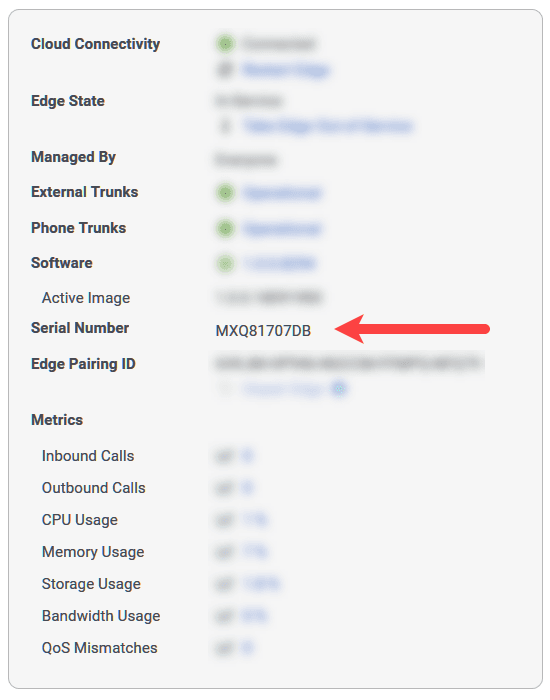
Edge standard
If the serial number begins with the letters CCP, then it is a Edge Standard v1. If the serial number begins with any other letters or numbers, then it is either an Edge Standard v2 or an Edge Standard v3.
To determine whether it is a Standard v2 or a Standard v3:
- Take note of the serial number.
- Access the Hewlett Packard Enterprise Support Services Central site.
- Enter the serial number when prompted.
If the result is HPE DL60 Gen9, then you have a Edge Standard v2.
If the result is HPE DL360 Gen10, then you have a Edge Standard v3.
Edge Mini or an Edge Micro
If the serial number begins with the letters KSA or ACG, then it is either an Edge Mini or an Edge Micro. Unfortunately, you can’t actually differentiate the Edge Mini and the Edge Micro from the serial number. To tell them apart, you have to have physical access to the device.
The Edge Mini and the Edge Micro are physically identical in that they both use the same chassis, so telling them apart depends on when they were manufactured.
In some cases, you can tell them apart by the model number found on the sticker on the bottom of the chassis.
- If the model number is ARK-1550-S9A1E, then you have an Edge Mini.
- If the model number is ARK-1550-S6A1E, then you have an Edge Micro.
If the model numbers do not correspond to this scheme, the only way to distinguish between them is by the size of the hard disk. The Edge Micro has a 256 GB hard disk while the Edge Mini has a 512 GB hard disk. You can slide out the externally removable solid-state drive to examine them.
Genesys recommends labeling the Mini and Micro Edges when you receive them.
Why can’t I find the chat group to receive webhook notifications?
You must be a member of owners-only or members-only Genesys Cloud groups to administer chat notifications (webhooks) to those groups. If you are not a member of those groups, you won’t find them when you attempt to specify the Chat Target in the Genesys Cloud configuration. Ask the owners of those groups to add you as a member and then remove you when the configuration is completed.Note: You can administer notifications to public groups without being a member.
How much storage do I have for my documents?
If you are using a Genesys Cloud Communicate license, then you have 2TB of storage available per organization.
If you are paying for a Genesys Cloud CX 1, Genesys Cloud CX 2, or Genesys Cloud CX 3 license, then you have unlimited storage available for all users.
See also How many documents can I upload?
Can we implement our own STUN/TURN server to proxy connections to Genesys Cloud?
No. Genesys Cloud does not support the use a private STUN/TURN server nor does it support private proxy servers. Genesys Cloud provides STUN and TURN services; in addition, it leverages Google’s global network of STUN (not TURN) servers for faster and better NAT traversal. If you disable them, then you will experience broken or slow NAT traversal during the connection of features like video chat or WebRTC phones.
How can I set up inbound faxing for Genesys Cloud BYOC?
Add the Conversation > Fax > Send and Conversation > One Number Fax > Receive permissions to the user. No default roles include these permissions, so add them to a new or existing role and then add that role to the user. For more information about roles and permissions, see Products, roles, and permissions list.
Can I make and receive calls when I am logged off of Genesys Cloud?
If you have a physical phone set as your default phone, then you can make and receive calls on that phone even if you are logged off of Genesys Cloud. Ask your administrator if you are unsure which phone is your default phone. If you are an administrator and want more information about how to assign a default phone to a user, see Assign a default phone.
If you do not have a physical phone set as your default phone and are logged off of Genesys Cloud, then you can still receive calls to your phone number in Genesys Cloud. Before you log off, enable call forwarding. Genesys Cloud forwards any calls made to your Genesys Cloud number to the number of your choice.
How are faxes sent and received in Genesys Cloud?
When a user sends a fax, Genesys Cloud converts the file to TIF file format and sends it to the appropriate device depending on your telephony connection. If you are using BYOC Premises, that location is an onsite edge device. If you are using either BYOC Cloud or Genesys Cloud Voice, that location is a cloud media device.
The device then sends the file to the user-entered number using your SIP trunks. If the file did not originate in Documents, Genesys Cloud also stores the original file in its original format in the user’s workspace in Documents. For information about how to send a fax from Genesys Cloud, see Send a fax.
Since a user has the same number for both incoming calls and faxes, the device must detect whether an incoming call is a voice call or fax. If fax detection is enabled and the device detects incoming fax tones, it negotiates the T.30 transmission, receives the image data, and sends the file to Genesys Cloud in TIF format. Genesys Cloud then converts the TIF file to a PDF file and sends it to both the user’s inbox and workspace in Documents. For information about how to view received faxes in Genesys Cloud, see View faxes in the inbox.
- Genesys Cloud supports faxing the following file types: .tiff, .pdf, .doc, .docx, and .odt.
- Genesys Cloud supports fax documents of up to 100 pages and 10 MB. If you must send a longer document, Genesys recommends that you divide the document into smaller parts.
- Documents to be faxed cannot be password-protected.
What public IP addresses does Genesys Cloud use?
Genesys Cloud uses public IP addresses provided by Amazon. These public IP addresses change frequently. For more information, see About ports and services for your firewall.
Why are some features not visible in the UI?
Note: The following Genesys Cloud features currently require additional permissions settings to view:
- Contact center features—The agent role is required to view agent contact center features, and the supervisor role is required to view the Queue and Agent dashboards and to view reports.
- Voicemail tab—The Unified Communications permission is required to view the voicemail tab. Follow these steps to add this permission:
- Click Admin > People and Permissions.
- Click Roles/Permissions.
- Click Edit Role.
- Click the Permissions tab.
- Click All Permissions.
- Check General > Unified Communications.
For more about permissions, see About People and Permissions and Products, roles, and permissions list.
What permissions are not associated with a default role?
Some permissions are not associated with any default roles in Genesys Cloud. For a complete list of permissions not assigned to a role by default, see the unassigned tab in the Products, roles, and permissions list.
If you want your users to have these permissions, add the permission to a default or user-added role and assign the role to the users you want to have the permission.
Which additional roles do contact center agents and supervisors need?
Contact center agents and supervisors need extra roles assigned to them so they can see the features they need to complete their work.
- Agents need the User role in addition to the Genesys Cloud User role.
- Contact center supervisors need the Supervisor role in addition to the Genesys Cloud Supervisor role.
Why is a user not receiving calls through their assigned DID number or extension?
If a user has a DID number or extension assigned to them and they cannot receive calls through that DID number or extension, check the following:
- If the user has both a DID number and extension, the DID number and extension are entered as different phones in the user’s Contact Information section in their profile. The DID number and extensions are considered different numbers and cannot be entered as the same phone. See Set your contact options.
- The DID number and extension are listed and defined in the DID or extension pools.
- The user has the proper license type, roles, and permissions. See Check a user’s permissions.
How can I enable voicemail for users?
To receive voicemail, a user must have the Voicemail > Voicemail > Receive permission enabled. This permission is assigned to the Communicate – User role by default. If a user is assigned the Communicate – User role, the voicemail option should appear. If the voicemail option does not appear, see Products, roles, and permissions list for instructions on how to add the voicemail permission. You can also add the Voicemail > Voicemail >Receive permission to other roles.
To view your voicemails, see Access your voicemail.
Why do calls disconnect when routed to an inbound call flow?
Automatic speech recognition (ASR) is enabled by default for the starting menu of new call flows. If no ASR terms are defined on the starting menu, the system can disconnect the caller. To prevent unintentionally disconnecting callers, define valid ASR terms for the menu options or override ASR for the call flow. See Basic flow design steps and Set up the starting menu.
How do I find my organization ID?
To view your organization ID, follow these steps:
- Click Menu > Account > Organization Settings.
- Click Advanced.
Genesys Cloud displays your organization ID.
How can I check for outages, availability, and the system status of Genesys Cloud?
Click the link below for Genesys Cloud’s operational, system availability, incident, and outage information. Use the Subscribe to Updates button to receive status updates through email, SMS notifications, or RSS or Atom feeds.
Why are calls not recording?
Call recording requires that Line Recording is enabled on the SIP trunk by a telephony admin. Complete the Enable recording on the trunk procedure.
Why do some webhook notifications not show up in my target chat rooms?
There is a rate limit of 10 webhook notifications per second. If you are seeing some notifications but not others, try narrowing the focus of the webhook mappings by adding more filters.
How do I enable company directory support on menus in Architect?
Open the flow for which you want to enable company directory support and in the flow’s Settings area, select Recording and Speech Recognition. In the Recording and Speech Recognition design area, under General Speech Settings, complete the following steps:
- Select the Enable speech recognition for the entire flow check box.
- From the Company Directory list, select the Enable for entire flow check box.
Can Genesys Cloud connect to another PBX?
Genesys Cloud can connect to any PBX that supports SIP. However, Genesys Cloud cannot currently share data, such as status or prior input, with these PBXs.
How do I select my region?
When you log in to the browser app, desktop app, or mobile app, you are prompted to select the region where your organization was created, for example, Americas (US East), Americas (US East 2), Americas (US West), Americas (Canada), Americas (São Paulo), Asia Pacific (Mumbai), Asia Pacific (Seoul), Asia Pacific (Sydney), Asia Pacific (Tokyo), EMEA (Dublin), EMEA (Frankfurt), or EMEA (London). If you are already logged in, log out and log back in with the region selected.
Whether you are in the office, at home, or traveling, your access to Genesys Cloud is routed to the URL corresponding to the location of the Amazon data center for your region.
If you are unsure of your region, contact your Genesys Cloud administrator. Alternatively, try these work-arounds.
- First time log in: Access the Genesys Cloud login URL for each region. Log in will be successful only with the URL corresponding to your organization’s region.
- Currently logged in: (Web app only) The web app URL corresponds to your organization’s region.
Can I disable an invite link after I send it out?
Yes. Toggle the Open Admission switch to OFF in the Organization Settings. See Configure invite links.
Which Salesforce API does Genesys Cloud for Salesforce use?
Genesys Cloud for Salesforce is based on the Salesforce Open CTI APIs, which is what Salesforce currently supports. The CTI Toolkit has reached end of support with Salesforce and is not used with the integration.
For more information about the integration, see About Genesys Cloud for Salesforce.