Use an AWS KMS symmetric key for conversations
AI-generated summary
Genesys Cloud supports AWS KMS symmetric key encryption for securing conversation data through a configurable integration. The system uses AWS KMS to generate data keys that encrypt and decrypt customer conversation data. Key features include:
Technical Requirements:
- AWS KMS customer-managed symmetric key configured for encrypt/decrypt usage
- Account ID 765628985471 for Core/Satellite regions
- Key policy granting Genesys Cloud access with specific permissions (kms:Encrypt, kms:Decrypt, kms:GenerateDataKey*, kms:DescribeKey)
- Organization-specific encryption context conditions
Implementation Process:
- Create AWS KMS key with required configuration
- Configure via Admin > Quality > Encryption Keys
- Enter KMS key alias ARN
- Test configuration before saving
- Allow up to 2 hours for new key rotation
- Maintain old keys for 31 days minimum for existing data access
Security Features:
- Data key generation from KMS symmetric key
- Encrypted conversation data using generated keys
- Authorized decryption requests through KMS
- Organization-specific access controls
- Option to disable encryption by selecting "None" configuration
- Conversation > Encryption key > Edit permission
- Conversation > Encryption key > View permission
Symmetric keys managed in AWS KMS can be configured to encrypt and decrypt customer secured conversation data. Genesys Cloud generates data keys from your symmetric key in KMS. Customer secured conversation data is encrypted with these data keys. To decrypt conversation data, Genesys Cloud makes a request to KMS to decrypt the relevant data key. After the request is authorized, the data is decrypted.
- Create a customer managed key in your AWS account.
- Set the key type to Symmetric.
- Set the key usage to Encrypt and decrypt.
- Edit the key policy to grant access to Genesys Cloud, so Genesys Cloud can access your KMS keys. Use 765628985471 (Core/Satellite regions) for the account ID. If needed, please contact your Genesys representative for the FedRAMP region [US-East-2] account ID.
- Edit the key policy to include a statement to only allow requests that initiate from your Genesys Cloud organizations.
The following is an example of the key policy statement:
{
     "Sid": "Allow use of the key",
     "Effect": "Allow",
     "Principal": {
         "AWS": [
              "arn:aws:iam::765628985471:root"
         ]
     },
     "Action": [
         "kms:Encrypt",
         "kms:Decrypt",
         "kms:GenerateDataKey*",
         "kms:DescribeKey"
     ],
     "Resource": "*",
     "Condition": {
          "StringEquals": {
                 "kms:EncryptionContext:genesys-cloud-organization-id": ["orgId1", "orgId2", ...]
        }
     }
}- Click Admin > Quality > Encryption Keys.
- Click Menu > Conversation Intelligence > Recording and Policies > Encryption Keys.
- Select the Conversations tab and click Edit.
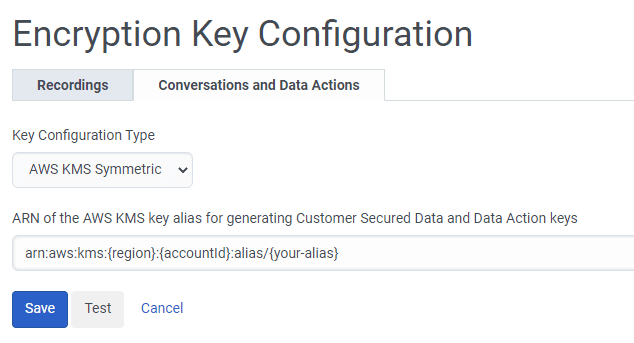
- From the Key Configuration Type list, select AWS KMS Symmetric.
- Enter the alias ARN associated with your KMS key in the ARN of the AWS KMS key alias for generating Customer Secured Data key text box.
The key alias ARN can be found in the AWS KMS console. It should look like “arn:aws:kms:{region}:{accountId}:alias/{your-alias}”. - Click the Test button to validate your configuration without saving it. The test generates a data key pair from your specified KMS key, encrypts the test data, decrypts it, and then asserts that test data came out the same as it started. This test helps to ensure that the configuration is safe to use.
- Click Save to save your configuration.
Click the image to enlarge.
Note:
- To stop encrypting sensitive conversation data, select None from the Key Configuration Type list and click Save.
This action removes your encryption key configuration for conversations. - When you rotate to a new key, it takes up to 2 hours for the new key to take effect in Genesys Cloud.
- Save the old key for at least 31 days, so that existing customer secured conversation data can continue to be decrypted.
[NEXT] Was this article helpful?
Get user feedback about articles.